I believe that a computer functions optimally when I pay it constant attention, as opposed to leaving it until there is something wrong with it. Unnecessary files, startup programs, web browser mess, and other factors may eventually start impacting performance. It is also necessary to keep my personal data safe while retaining sufficient storage space for work purposes. This is why I think that PC cleaning, performance, and security checks should be part of my computer maintenance practice.
What Is Advanced SystemCare
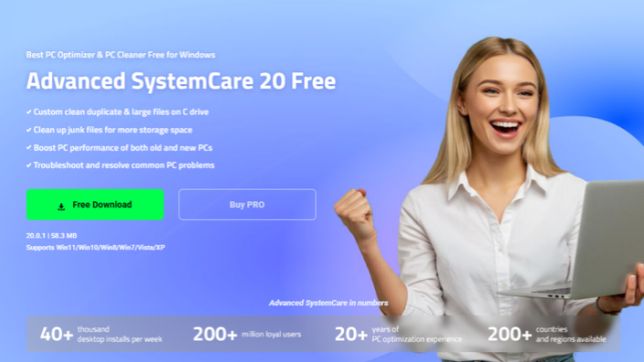
Advanced SystemCare is a comprehensive utility for Windows optimization created by the company IObit. I am able to clean useless files, increase the system’s speed, control programs that start up at system initialization, as well as use many privacy and security tools.
Features I Find Useful for Better PC Performance
Smart Cleaning and Custom File Management
One aspect I really like about this software is the cleaner feature. My PC always ends up with various unnecessary files and other junk such as temporary files, browser cache, leftover files, log files, etc. It helps to identify these junk files and delete them.
The new Custom Clean feature looks beneficial in the sense that it can detect duplicated and huge files on the C drive. The function makes it easier to assess how the storage space is being used and which unnecessary files can be deleted. It is always ensured that necessary files are viewed before deletion.
Faster Scanning with the Next-Generation Engine
I appreciate tools that cut down on unnecessary waiting. The next-generation scan engine is capable of scanning all the modules at once and hence decreases the overall scan time. It becomes easy for me to analyze various areas of my computer without spending too much time on maintenance work.
Startup Optimization and Turbo Boost
In case there are many applications installed on my computer, some may be launched automatically by Windows. Startup Optimizer assists me in detecting unnecessary software to start up and allows me to select which ones I would like to disable.
Turbo Boost is also helpful in situations where additional resources are required for more intensive tasks. Its Work Mode temporarily closes selected non-essential background services and applications, freeing up more system resources for what I’m working on.
Real-Time Performance and Network Monitoring
I prefer to be more aware of resource consumption on my computer. It provides information about RAM, CPU, and disk resource usage, which makes it easy for me to find out which process consumes too many resources.
The new network monitor feature tells me the real-time upload and download speed of my computer and hence makes it easier for me to detect any background process that consumes network bandwidth.
Additional Tools for Everyday Maintenance
These utilities are helpful in solving various types of maintenance issues. The Registry Cleaner utility is helpful in finding outdated registry entries, whereas the Disk Cleaner is useful in deleting unnecessary files. On the other hand, the Internet Boost utility helps in making adjustments to the supported browsers for improving the speed of browsing.
How I Use Advanced SystemCare to Optimize My PC
I prefer a simple maintenance routine over changing system settings I don’t understand. Here’s my approach:
Step 1: Download and Launch the Software
I downloaded this PC cleaner from the company’s official website. Then I proceeded to install the program, and once it was done, I opened the application and performed a review of its interface.
Step 2: Run an AI Scan
I open the Care tab, select AI Mode, and click the SCAN button to examine different areas of my computer. This enables me to search for unnecessary files and other such problems.
Step 3: Fix Detected Issues
After scanning the documents, I evaluate the selected ones to find out whether action needs to be taken. This process includes looking at the documents as well as preferences to make sure nothing is missed.
Step 4: Monitoring and Managing Startup Applications
Next, I open the Speed Up section and explore Startup Optimizer. I will not turn on or enable the apps that I don’t require once my Windows has booted up, but all other system services shall be turned on.
Step 5: Enable Performance Monitoring
Performance Monitor or Real-Time TuneUp is enabled where possible. I use the monitoring data to assess resource usage and spot unnecessary background activity.
Step 6: Configure Privacy Protection
Lastly, I set up System, Privacy, and Browser Protection from the Protect tab, check for software updates, and make use of Custom Clean to create some additional disk space.
Who Should Use This Software
As a Windows PC user looking for efficient ways to maintain your PC, I would suggest giving Advanced SystemCare a try for your cleaning, optimization, and security needs.
Final Thought
I am of the opinion that maintenance is critical to making it easier to manage a Windows PC. This particular application includes cleaning, optimization, and security functions all in one application. The functionality of Custom Clean, Startup Optimization, and Performance Monitoring is quite efficient. A person will be able to keep his or her computer in good condition through careful analysis of the configuration and creation of a proper cleaning schedule.