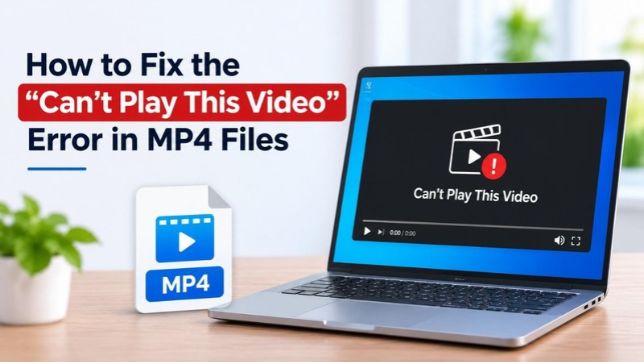
Many users, while playing high-definition MP4 videos on their PC or streaming 2K or 4K videos, get a blank screen with the following error message “This video file cannot be played.” It is a playback issue that isn’t just because of slow internet or insufficient bandwidth. It can also be due to an issue with the GPU, or the video file is corrupted or damaged. Let’s read further and explore some solutions to fix the error.
What Does the Can’t Play This Video Error Mean?
The “Can’t Play This Video” error is a result of a conflict between the video file and the platform on which you are trying to play it. It happens on both browser-based streaming platforms like YouTube, Netflix, etc., and with video files saved locally on your laptop or desktop PC.
In the case of streaming platforms, this error occurs due to issues with the hardware/graphics accelerator of your browser, corrupted browser cache data, or your IP being blocked by a third-party ad blocker or extensions.
For locally saved MP4 files, this error may occur due to unsupported video codecs, outdated media players, incorrect file extensions, or file corruption.
Common Causes Behind the Can’t Play This Video Error
Listed below are some reasons why you encounter the Can’t Play This Video error message while playing or streaming high-definition videos.
- Corrupted MP4 file due to an interrupted recording, incomplete download, etc.
- Missing or unsupported codecs
- Outdated media player
- Incorrect file extension
- Damaged video metadata, i:e., there is an issue with the MP4 container structure, including its header
How to Fix the Can’t Play This Video Error?
Try the following methods one by one to resolve this playback issue.
Method 1: Refresh the Page and Reopen Your Browser
Sometimes, refreshing the page gives the video player a clean start without changing any settings. You can try doing this to fix the playback issue. Press “F5” on your keyboard or click on the refresh icon in your browser.
Method 2: Lower the Quality of the Video
If you are trying to watch a 4K video on a slow internet connection, it won’t be able to play the video. A simple fix for this is to drop the quality of the video playback by lowering the quality settings on your device/player/streaming platform. You can choose either 360p or 480p instead of 1080p or 4K.
Method 3: Use or Disable a VPN for Geo-Restricted Videos
Sometimes, you get the “Can’t Play This Video” error message on your screen if you try to stream a geo-locked video. You can use a VPN to access such content that is blocked in your country. However, you need to be sure that watching such videos is legal under your country’s laws. There are many reliable VPN like Proton, UrbanVPN, Windscribe, or TunnelBear that you can choose from.
Method 4: Try Playing the MP4 File in Another Media Player
Sometimes, the video file you are trying to play is not supported by the video player installed on your system. Due to this, you get the “Can’t Play This Video” error. This usually happens if the required codecs are missing or are not supported by the current video player. You can try to play the video in another media player like VLC or MPC-HC. Such video players are compatible with the majority of video formats and support a wide range of codecs.
Method 5: Install the Required Video Codecs
An MP4 file can contain video encoded with H.264, H.265 (HEVC), or other codecs. If your media player doesn’t support the codec used in the video, it may display an error such as “Can’t Play This Video.” To fix this, install the codecs required by your media player.
Method 6: Repair Video File (Using Online Video Repair)
If none of the above methods helped resolve the “Can’t Play This Video” error, then the reason could be video file corruption.
If you have a single or a small (<50MB) video that you want to repair, you can try a free online video repair like Stellar online video repair. It is a browser-based service that lets you upload corrupted or unplayable videos and repair them for free. It supports MP4, MOV, AVI, MKV, M4V, and several other video formats.
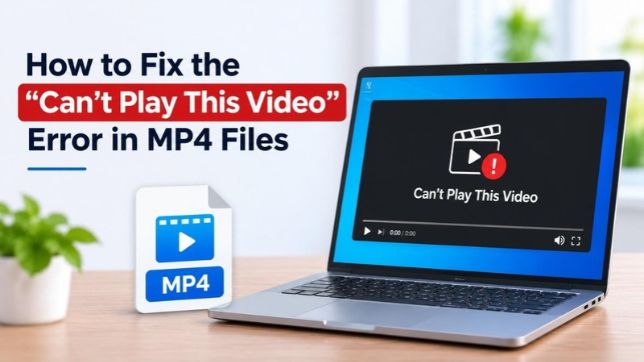
Salient features of the free online video repair by Stellar:
- Repair corrupted, freezing, glitching, or non-playing video files
- Supports video files of different formats like MP4, MOV, M4V, MJPEG, etc.
- Simple 3-step video repair process: Upload > Repair > Download
- AI-Powered online video repair tool
If you have large or multiple video files to repair, you can use the Standard edition of Stellar Repair for Video. It is a dedicated video repair tool that lets you repair corrupted, damaged, or non-playing video files on your system. The software can fix MP4, MOV, AVI, MKV, M4V, HEVC, and many more video file formats. The software can help address issues such as: MP4 files not playing, freezing videos, distorted video frames, Audio-Video synchronization problems, and videos with corrupted headers. The tool can also repair multiple video files in a single operation with its batch repair feature. This saves a considerable amount of time if several videos are corrupted or damaged.
Conclusion
The “Can’t Play This Video” message looks alarming, but it doesn’t always mean your video is gone forever. It could even occur while streaming videos online. The reasons could be an unsupported codec, an outdated media player, a browser issue, or an incomplete file transfer. Refreshing the webpage, restarting the browser, playing on another media player, or installing the required codec can help resolve this playback error.
However, if the MP4 file is corrupted, then you’d need a dedicated video repair solution. You can use Stellar Online Video Repair for a single or small-sized video without installing software. For larger files, multiple videos, or situations where you prefer to repair videos locally, Stellar Repair for Video desktop software is a more suitable option.